How the shop board works
Bayline is the live schedule for the bays. Every station that is signed in sees the same board, and a change on one screen shows up on the others within a couple of seconds.
The calendar
Day view is one day, with a column for each bay. The bay name is the large title on that column. Each hour is a short row so more of the day fits on the screen. Week view is the same clock, with a column for each day, Monday through Saturday. Hide weekends under Settings → Shop to drop Saturday and Sunday and skip them when moving day to day. The hours on the board come from Settings → Shop, under Calendar hours. Booking interval is there too: 30 minutes by default, or 1, 5, 10, 15, or 60. The change notice after a move or edit can sit in any corner. Choose that under Settings → Shop, Change notice. The two month calendars on the left are this month and next month. Use the month name to jump to another month, or click a day to open it. Move the pointer through an hour and that time lights up in the left column. Noon to 1:00 has a soft lunch tint on the bays only, not behind the times. Today or the T key returns to the present day. On Saturday or Sunday it opens the coming Monday. Arrows move one day, or one week when you are in week view.
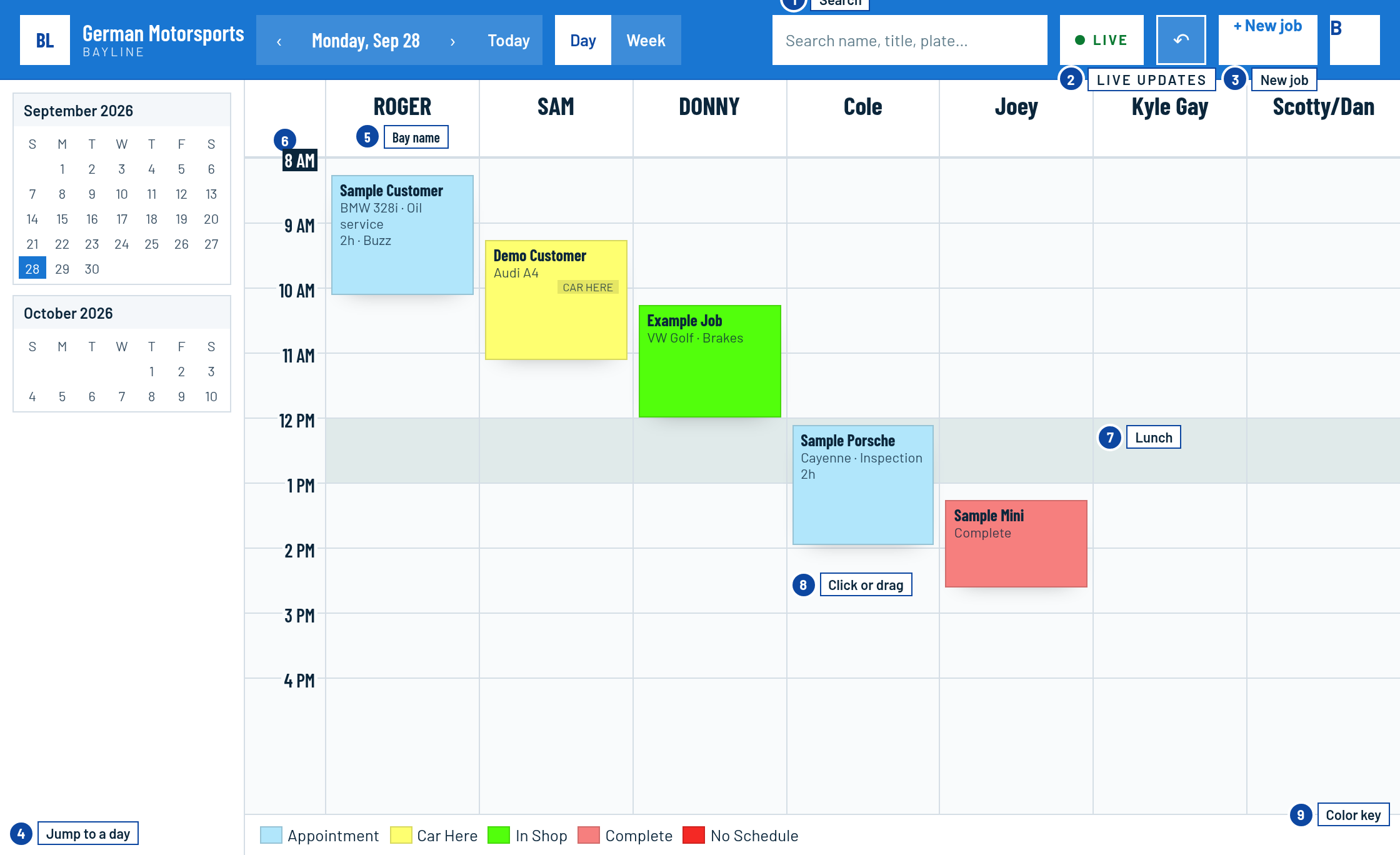
Making a job
- Click an empty spot to open a new job for that time block.
- Drag up or down on an empty spot to set the length, then the form opens. A dragged length stays put when you pick a service. A click still uses the service's usual length.
- N or New job opens the form in the center of the screen.
The form is one screen: service, start time, duration, bay, service writer, customer, phone, vehicle, and notes. It opens with you as the service writer. Change it if someone else should own the job. Pick a service and the usual length fills in, unless you dragged the length yourself. Notes grow as you type, and you can drag the corner to make them taller. Book it saves the job.
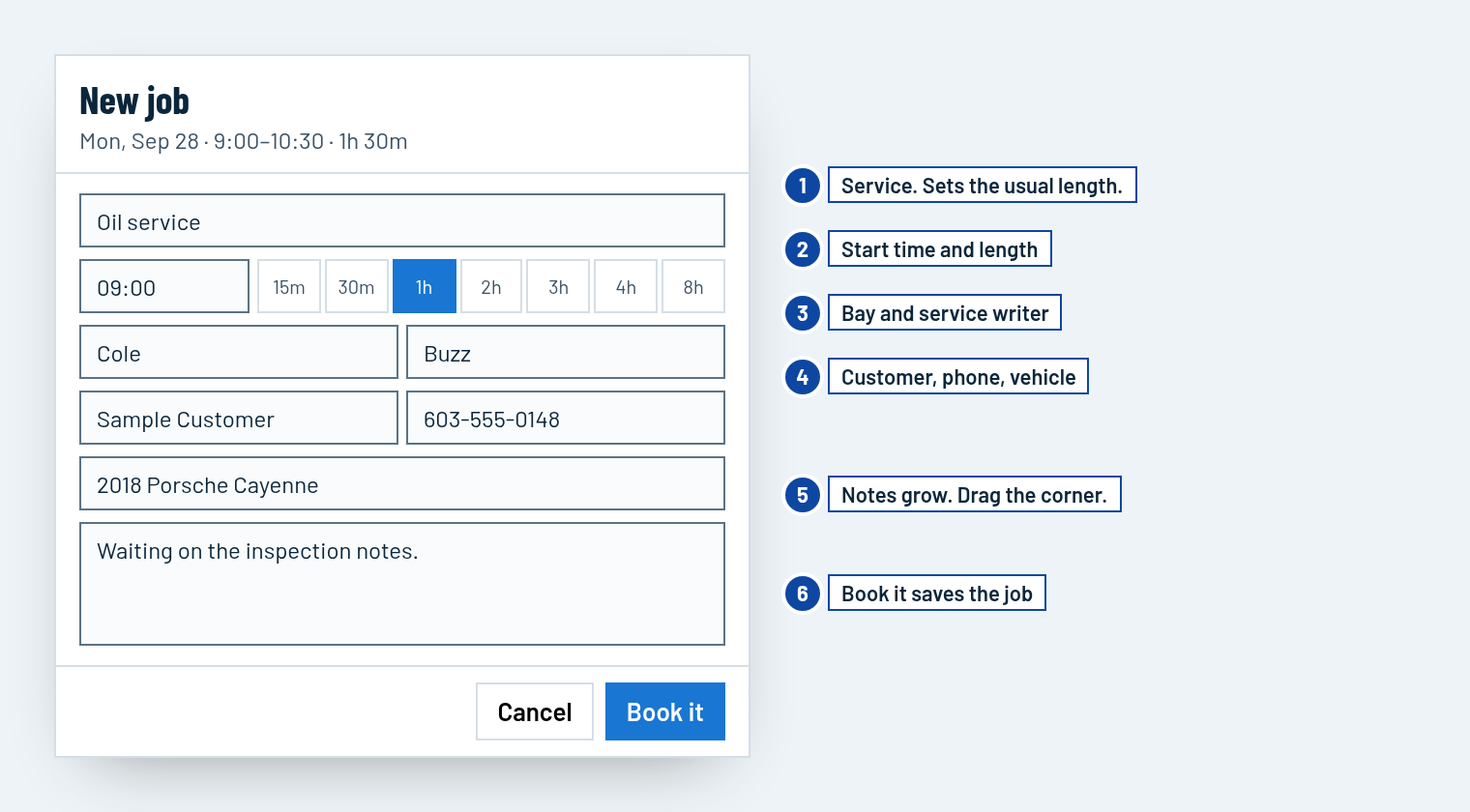
Opening and editing
Click a job for a short summary — who, status, time, bay, service, service writer, vehicle, and phone. Ctrl-click, or ⌘-click, opens the editor immediately. Edit on the summary does the same. A click anywhere else closes a popup. If the editor has unsaved changes, it asks before those changes are lost. Cancel on an existing job returns to the summary. Drag the window by its header. From the board, the service list sits under the pointer. New job from the header opens in the middle of the screen.
Drag a job to another time or bay. Drag the top or bottom edge to change how long it runs. The grab point stays under the pointer.
Right-click a job
The menu has two parts.
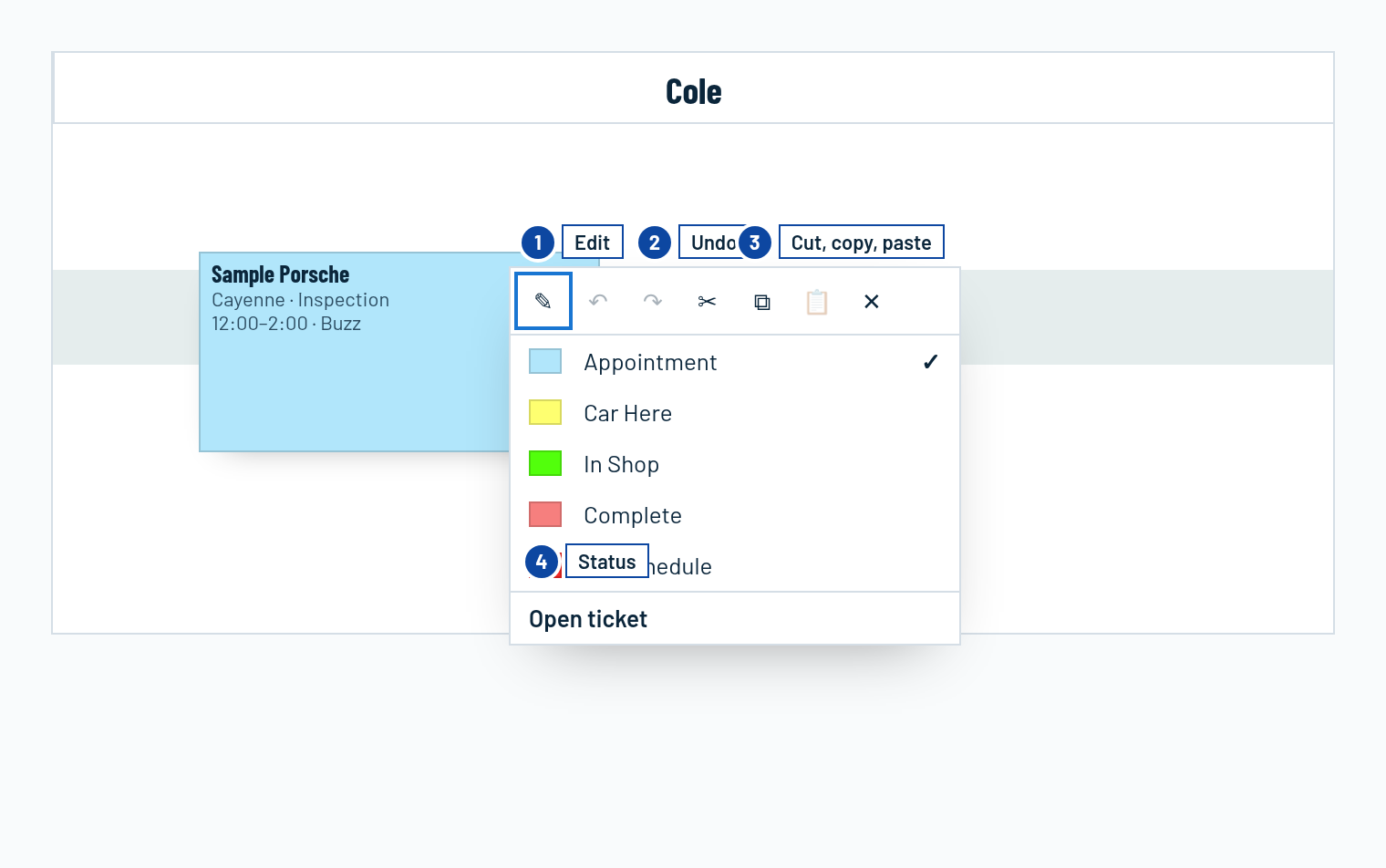
- Top row: Edit, then Undo and Redo, then Cut, Copy, Paste, and Delete. The menu opens with the pencil under the pointer. Edit opens the ticket immediately. Undo and Redo stay gray until there is a change to reverse. Paste stays gray until a job is cut or copied. The arrow tip is the click point.
- Under that: the status colors. The check mark is the status this job has now. Open ticket is at the bottom.
To put a job on another day:
- Cut moves it. The card fades until you paste.
- Copy leaves the original in place.
- A card in the upper left of the board shows the cut or copied job until you paste, press Esc, or click its cancel button. Cancel and Esc leave the job unchanged. Refreshing the page does not delete it.
- Open the day you want, or stay on the week board, and right-click an open time.
- Paste keeps the same length, customer, vehicle, and notes, then clears the card.
Day view uses the bay you click. Week view keeps the original bay and only changes the day and time. If that bay is already booked, the paste is blocked and a cut stays ready to try again. Delete removes the job. Undo puts it back.
While the menu is open, Ctrl or ⌘ X, C, and V match the icons. Status names and colors are changed in Settings. The color key along the bottom of the board uses those same colors. In dark mode the colors keep the same shade, just less bright.
Overlapping bookings
By default a bay holds one job at a time. Booking, dragging, or pasting onto an occupied bay is blocked, and the board names the job that is already there. Cancelled and no-show jobs do not hold the bay. Turn on Allow overlapping bookings under Settings → Shop if two jobs should share a bay.
Search, undo, and live updates
The search box in the header looks through the job line, notes, bay, and service writer. Each word has to match, in any order, so “hogan restraint” finds “Mike Hogan - CLK - Restraint message”. A phone number matches with or without dashes, including numbers written in the notes. Press S or / to focus it. Open a result to jump to that day and ticket. The list shows the closest 30 jobs. Undo and redo cover booking, edits, moves, status changes, and deletes — use the arrows in the header, the right-click menu, or the keys in the shortcut list. A toast offers the opposite action for a few seconds.
The Live pill means this station is receiving updates. If it says Offline, the board is still usable and will catch up when the connection returns.
Settings and productivity
Settings covers statuses, bays, which service writer is on each bay, site colors, shop hours, services, and service writers. Drag a bay to change its order. Bay names came from the MRBS rooms. A service writer is also a sign-in. Click your name in the header to change it, switch light or dark, update your password, or save a named passkey, then choose Use a passkey on the sign-in page. Only an admin can change settings or add service writers. The shop keeps at least two admins, and a network with an admin still signed in is not locked after bad passwords. Settings → Blocked is where an admin pastes a new Cloudflare token. A standard login can book, move jobs, and open productivity, but not settings. View only can look at the board and cannot open productivity. Productivity shows throughput by day, bay, service writer, and service. It is in the header for standard and admin logins. Settings is in the header for admins. Database import can wipe the shop and load a full MRBS dump or a Bayline backup. A full copy of the shop is also saved every day at 6:00 PM Eastern and kept for 2 weeks. Settings → Database shows the last attempt, and a failed copy is marked in red. Restore asks you to confirm, saves a copy of the current shop first, then puts that day back. The board only loads a day or a week at a time. Search looks through the last 10 years. Sign-in slows down after too many wrong passwords. Download MRBS calendar, next to Download backup, writes an iCalendar file the old MRBS Import page can load. It does not change backups or MRBS import.
Signing in
The board asks for a station login. Use the account you were given. An admin can change the heading, message, badge, button, logo, and passkey button under Settings → Sign-in. Those choices, including the logo, are shop settings and are included in the nightly backup. The first time that login opens the board, a short welcome lists the highlights. Close it to start working. If that login has no passkey, the board then asks once on this computer to save one. Not now keeps password sign-in. The question mark in the header opens this page any time after that. Sign out is on your name in the header.